
Zapya for PC Download – Windows 11, 10, 8 & 7 (Latest Version 2026)
Move Files Between Your Phone and Computer – No Cable, No Internet
| App Name | Zapya PC |
| Version | v2.8.0.3 (Lite) |
| File Size | 15.9 MB |
| Operating System | Windows 11, 10, 8.1, 8, 7 |
| Architecture | 32-bit & 64-bit |
| Developer | DewMobile |
| Installer | ZapyaPC_v2.8.0.3_Setup.exe |
| Digital Signature | Dewmobile USA, Inc. (valid) |
| Connects With | Android, iPhone, iPad, Mac |
| Connection | QR code, same Wi-Fi or hotspot |
| License | Free |
Zapya for PC is the free Windows version of the popular Zapya file-sharing app. It lets you send photos, videos, music, documents and apps between your computer and your Android phone or iPhone wirelessly – no USB cable, no cloud upload and no internet connection required. Install the small Windows client, scan a QR code with your phone and drag files across in seconds.
This guide covers the Zapya PC download for Windows 11, Windows 10 (64-bit and 32-bit) and Windows 7, installation, how to connect your phone, how to transfer files from PC to mobile and back, and how to fix the most common "Zapya PC not connecting" problems.
Table of Contents
What Is Zapya for PC?
Zapya PC is the official desktop client made by DewMobile, the developer of Zapya. It turns your laptop or desktop into a Zapya device so it can exchange files with any phone running the Zapya app. Under the hood, the PC and phone talk over a local wireless connection – either your home Wi-Fi network or a hotspot – so transfers are fast and never touch the internet.
People search for it as "Zapya for Windows", "Zapya for laptop", "Zapya PC transfer" or "Zapya APK download for PC". They all mean the same thing: a way to use Zapya on a computer. Unlike many Android apps, you do not need an emulator, because DewMobile provides a native Windows program.
Zapya PC Features
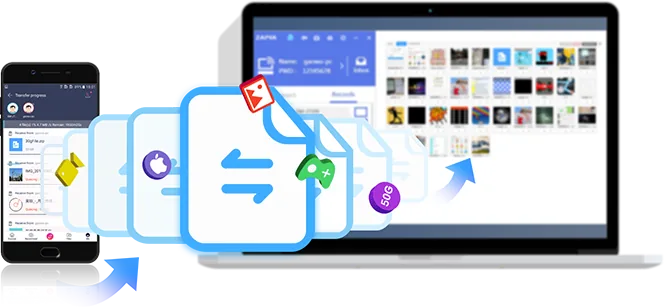
PC to mobile and mobile to PC
Send files in both directions: move holiday photos from your phone to your laptop, or copy movies, music and documents from your PC to your phone for offline use.
Drag and drop
Drop files and folders straight onto the Zapya window to send them. There is no need to browse your phone's storage or install drivers.
Quick QR-code connection
The PC shows a QR code; scan it with the Zapya app on your phone and the two connect instantly.
No file size limits
Large videos, ZIP archives, ISO images and entire folders are all supported.
Works with Android and iPhone
The same PC client exchanges files with both Android phones and iPhones, which makes it a handy bridge in mixed-device households.
No cable or drivers
Because everything is wireless, you avoid the usual USB cable, MTP driver and "device not recognised" headaches.
Zapya PC System Requirements
| Requirement | Minimum | Recommended |
|---|---|---|
| Operating system | Windows 7 | Windows 10 or Windows 11 |
| Processor | Any dual-core CPU | Intel Core i3 / AMD Ryzen 3 or newer |
| RAM | 2 GB | 4 GB or more |
| Disk space | 100 MB for the app | Plus room for received files |
| Network | Wi-Fi adapter or LAN on the same network as the phone | 5 GHz Wi-Fi for the best speed |
| Phone | Zapya app on Android 8.0+ or iOS 13+ | |
Does Zapya Work on Windows 11 and Windows 10?
Yes. Zapya PC runs on Windows 11 and Windows 10 in both 64-bit and 32-bit editions, as well as on Windows 8.1, 8 and 7. Zapya is also listed on the Microsoft Store, which is the easiest option if your PC is in "S mode" or you prefer automatic updates.
Zapya for PC 32-bit vs 64-bit
There is a single installer for both architectures, so you do not have to choose. If you are not sure which Windows you have, open Settings → System → About and look at "System type" – either way, the same file works.
Zapya for Windows 7
Zapya PC still installs on Windows 7. Keep in mind that Windows 7 no longer receives security updates from Microsoft, so use it on a trusted home network.
How to Download and Install Zapya on Windows 11/10
- Download the installer. Click Download Zapya for PC. The 15.9 MB file
ZapyaPC_v2.8.0.3_Setup.exeis saved to your Downloads folder. - Run the setup. Double-click the file. If Windows SmartScreen appears, click More info → Run anyway only if the file came from the official link.
- Approve the prompt. Click Yes on the User Account Control dialog.
- Follow the wizard. Choose the install folder and click Install. It takes less than a minute.
- Allow network access. When Windows Defender Firewall asks, allow Zapya on Private networks so your phone can reach it.
- Launch Zapya. The main window shows a QR code and your PC's name – you are ready to connect.
Prefer the Store? Search "Zapya" in the Microsoft Store app or use the Microsoft Store listing. Store apps update automatically.
How to Connect Your Phone to Zapya PC
- Install the Zapya APK on your Android phone or Zapya for iPhone from the App Store.
- Connect the phone and the PC to the same Wi-Fi network. (If there is no router, let Zapya create a hotspot and join it from the other device.)
- Open Zapya on the PC – a QR code appears.
- On the phone, open Zapya, tap the scan icon and point the camera at the QR code.
- The phone and computer connect. Your PC now appears as a Zapya device on the phone.
How to Transfer Files From PC to Mobile With Zapya
- Connect your phone to Zapya PC as shown above.
- On the computer, drag the files or folders onto the Zapya window, or click the send/add button and pick them.
- The transfer starts immediately. Received files are saved on the phone in the zapya folder and listed in the app's history.
How to Transfer Files From Mobile to PC
- With the devices connected, open Zapya on the phone and tap Send.
- Select photos, videos, apps or documents.
- Choose your PC as the receiver. Files appear in Zapya's receive folder on the computer – click the folder icon in Zapya PC to open it.
Typical speeds over a good 5 GHz Wi-Fi network are several megabytes per second, so a 1 GB video usually arrives in a few minutes or less.
Zapya Web: Use Zapya on PC Without Installing
Can't install software on the computer – for example a work or school PC? There are two browser-based options from DewMobile:
- Zapya Transfer – upload from your phone and open the link on any computer's browser at zapyatransfer.com. Needs internet.
- Zapya WebShare – a separate Android app that lets any browser on your local network browse and download your phone's files.
Zapya APK on PC With an Emulator (BlueStacks, LDPlayer)
Some guides suggest installing the Zapya APK inside an Android emulator such as BlueStacks or LDPlayer. That works, but it is rarely the best choice: emulators use a lot of RAM, their virtual network adapters often stop phones from finding them, and files land inside the emulator rather than on your real Windows drive. Use the native Zapya PC client unless you specifically need the Android app's interface on your desktop.
Zapya for Laptop
Zapya PC is ideal on laptops because almost all of them have built-in Wi-Fi. Connect the laptop and phone to the same hotspot or network and transfer files anywhere – in class, at the office or while travelling.
Zapya PC Not Connecting? Try These Fixes
- Same network: make sure the phone and PC are on the same Wi-Fi (not a guest network that isolates devices).
- Network profile: in Windows, set the Wi-Fi network to Private; Public networks block incoming connections.
- Firewall: allow Zapya through Windows Defender Firewall (Settings → Privacy & security → Windows Security → Firewall → Allow an app).
- VPN and antivirus: pause VPNs and third-party firewalls while transferring.
- Phone permissions: on Android, turn on Wi-Fi and location/nearby devices; on iPhone, allow Local Network access for Zapya.
- Restart: close Zapya on both devices, reconnect Wi-Fi and scan the QR code again.
Is Zapya PC Safe?
The installer offered here is DewMobile's original file – byte-for-byte the same as the one on izapya.com – and it carries a valid Authenticode digital signature from Dewmobile USA, Inc. You can check it yourself: right-click the file → Properties → Digital Signatures. Its SHA-256 is 16eb79f81833779b61d92e731ea32a37a57c17f6306c2758f6fc826155107ecf. Windows SmartScreen may still show a warning for less-common programs – that is not a virus alert, but you should only bypass it for files you downloaded from an official source. Avoid "Zapya PC crack" or "portable" versions from unknown sites.
Zapya PC Old Version
The current official Windows build is v2.8.0.3. Older 2.x builds offer no real advantage and are no longer distributed by DewMobile, so we recommend the latest version. Looking for an earlier Android release instead? See Zapya old versions.
Zapya PC Alternatives
- Quick Share for Windows – Google's tool for Android-to-PC sharing.
- Microsoft Phone Link – built into Windows for photos and messages from Android.
- LocalSend – free and open source, no ads.
- Send Anywhere – direct or cloud-based transfers with a 6-digit key.
Zapya for PC – FAQs
Is Zapya available for PC?
Yes. DewMobile offers a free native Zapya client for Windows PCs and laptops, currently version 2.8.0.3. It is also listed on the Microsoft Store.
Does Zapya work on Windows 11?
Yes. Zapya PC runs on Windows 11 as well as Windows 10, 8.1, 8 and 7, in both 64-bit and 32-bit editions.
How do I connect my phone to Zapya on PC?
Put the phone and PC on the same Wi-Fi network, open Zapya on both, then scan the QR code shown on the PC with the Zapya app on your phone.
Do I need internet to use Zapya on PC?
No. The phone and PC only need to be on the same local network or hotspot. Internet is only required for the online Zapya Transfer service.
Can I use Zapya on PC without installing it?
Yes, partly. Zapya Transfer lets you download files sent from your phone in any web browser, and the Zapya WebShare app lets a browser on your local network access your phone's files.
Can I install the Zapya APK on Windows?
An APK only runs inside an Android emulator such as BlueStacks. It is simpler and faster to install the native Zapya PC program instead.
Is Zapya for PC free?
Yes. Zapya for PC is completely free to download and use, with no limits on file size.
Why is Zapya PC not connecting to my phone?
Usually the devices are on different networks, the Windows network is set to Public, or the firewall or a VPN is blocking Zapya. Set the network to Private, allow Zapya through the firewall and scan the QR code again.
Conclusion
Zapya for PC is a fast, free and cable-free way to move files between Windows and your phone. Download the official v2.8.0.3 installer, scan the QR code with the Zapya app, and start transferring photos, videos and documents in seconds.